Sunday, March 22, 2015

TUTORIAL for PTU kit Spring by AmyMarie


*click image to view full size*

This tutorial was written by me on March 22, 2015.
Both the tag and the tutorial are purely my own work, 
and any similarities to anyone else's creations are purely coincidental.

I use Photoshop Elements 12, which is NOT the most updated version, so you may have a quicker way to do things.  I don't have any fancy plug-ins or flashy extras.  My way of making this tag is certainly NOT the only way, nor is it the best.  I only offer ONE way to create a tag.

Some knowledge of Photoshop (any version) is assumed and required for understanding this tutorial.
*C/P = Copy/Paste*

Here we go!

Tube: Spring by Norella HERE
Kit: matching kit Spring by AmyMarie HERE, HERE, and HERE
Font: AR HERMANN HERE
Template: 268 from BeckyP's Creations HERE

Open BP Template 268 - hide Credit layer and White Background layer - 
Image - Resize - Image Size - Width 600 - Height 531

Open Paper 3 - c/p as new layer above template layer "Green Rectangle" -
Right Click - Create Clipping Mask

Open Paper 11 - repeat same procedure as above with template layer "Yellow Circle"

Open Paper 10 - repeat same procedure as above with template layer "Lilac Circle"

Open Paper 8 - repeat same procedure as above with template layer "Dark Lilac Rectangle" -
resize as needed

Open Paper 21 - Image - Rotate - 90° Left -
repeat same procedure as above with template layer "Yellow Rectangle Shape"

Open Paper 1 - c/p as new layer above both template layers named "Frame 2 Fill"

Open Paper 22 - repeat same procedure as above with template layers "Frame 2 BG," 
and "Frame 1 BG"

Highlight Template layer "Frame 2 Stripes"
Enhance - Adjust Color - Adjust Hue/Saturation - 
Lightness Slider to +75
Repeat same procedure with template layer "Frame 1 Stripes"

Open Paper 9 - c/p as new layer above template layer "Leaf Swirly" - 
Right Click - Create Clipping mask - resize as needed

Open Tube (Spring by Norella) - hide "Layer 1" and "TOU" layers - 
c/p as new layer into template as top layer - 
resize to 86.55 - reposition to right side of frames - 
Image - Rotate - Flip Layer Horizontal

Go back to Tube image (the original, NOT the one you just put in the template) -
Rectangle Marquee Tool - draw a box from upper left corner diagonally down
to select tube's head and shoulders
c/p as new layer below template layer "Frame 1 BG" -
resize to fit inside frame - Opacity 75%

Open Element 1 - c/p as new layer at the top - resize to 17.50 - rotate 15.49° -
reposition to bottom left of frame -
Image - Transform - Perspective -
push left side of egg back slightly

Open Element 7 - c/p as new layer - resize to 37.05 - reposition to bottom of frame on left side, slightly covering yellow egg

Open Element 38 - c/p as new layer - resize to 27.80 - reposition to bottom of frame at right side, just in front of tube's legs

Open element 36 - c/p as new layer - resize to 19.12 - rotate -25.83° -
reposition to upper left corner of frame

Open Element 47 - c/p as new layer above tube layer - resize to 87.67 - 
Image - Rotate - Flip Layer Horizontal -
reposition to lower left corner

Open Element 65 - c/p as new layer beneath template layer "Frame 2 Fill" - 
resize to 62.86 - rotate 20.11° - reposition behind frame and tube
Duplicate Layer - rotate 83.48° -
reposition down and to the right slightly

Open element 85 - c/p as new layer below tube layer - 
resize to 36.39 - reposition to bottom center

Layer - Merge Visible
Duplicate Layer
Filter - Blur - Gaussian Blur - 3.0 - OK
Blending Mode - Screen - Opacity 50%
Layer - Merge Visible
Enhance - Auto Sharpen

New Text Layer - Size 18 - Color#7c4988 -
Type Name - OK
Graphics - Text - Outline (double click to apply)
Layer - Layer Style - Style Settings -
Stroke Color #ffffff - OK

Add credits and save

~*~*~*~*~*~

I hope you enjoyed this tutorial!  
If you like my work, please leave me a comment,
and as always, thank you for stopping in!


Friday, March 20, 2015

TUTORIAL for PTU Baby Girl Angels kit by AmyMarie


*Click image to view full size*

This tutorial was written by me on March 20, 2015.
Both the tag and the tutorial are purely my own work, 
and any similarities to anyone else's creations are purely coincidental.

I use Photoshop Elements 12, which is NOT the most updated version, so you may have a quicker way to do things.  I don't have any fancy plug-ins or flashy extras.  My way of making this tag is certainly NOT the only way, nor is it the best.  I only offer ONE way to create a tag.

Some knowledge of Photoshop (any version) is assumed and required for understanding this tutorial.
*C/P = Copy/Paste*

Here we go!

Tube:  Lada by Grafik HERE
Kit: Baby Girl Angels by AmyMarie HERE, HERE, and HERE
Font: Seasons-Spring HERE
Mask: 156 by Designs By Vaybs HERE
Template:  40 by Millie's PSP Madness HERE (link will take you directly to download)

File - New - 600 x 600 - Flood Fill w/ white - rename Layer 0 - hide
(I will sometimes unhide this layer to see how my tag is looking, 
just to make sure that it's turning out the way I want it to)

Open Template 40mpm - delete layers 9, 10, 11, and Raster 1

Open Paper 15 - c/p into template above layer Z - right click - create clipping mask
Repeat the process with same paper, this time c/p above template layer 5

Open paper 22 - repeat same process as before with template layers 3 and 1

Open paper 17 - repeat as above with template layer 2

Open paper 1 - repeat as above with template layer 4

Open paper 16 - repeat as above with template layers 6 and 8

Layer - Merge Visible

Open Element 30 - c/p as new layer - resize down to 16.44 - 
reposition to inner corner of leftmost pink square
Image - Transform - Perspective - push and pull image until it looks like the wreath 
is hanging from the corner of the pink square

Open tube - zoom to 200% - using magic wand tool, select yellow flower in her hair
Enhance - Adjust Color - Replace Color
Selection Color #fef34f - Replacement Color #9dc6b4 - Lightness slider to +15 - OK
c/p as new layer into tag - resize to 75.25 - 
reposition to right side of canvas

Open Element 26 - c/p as new layer - resize to 29.09 - reposition toward left side

Open Element 101 - c/p as new layer - resize to 22.97 - rotate -14.41° -
reposition to top of left pink square

Open Element 66 - c/p as new layer - resize to 23.54 - rotate 67.40° -
reposition to upper left corner of leftmost square
Duplicate Layer - Image - Rotate - Flip Layer Horizontal -
reposition to upper right corner of rightmost square

Open Element 60 - c/p as new layer - resize to 11.10 - reposition to bottom center,
overlapping template layer slightly
Duplicate layer - reposition to lower right corner
Duplicate layer - reposition to lower left side

Open Element 140 - c/p as new layer - resize to 24.44 - rotate 27.35° -
reposition to middle right side - move layer position to below tube layer
Duplicate Layer - Image - Rotate - Flip Layer Horizontal - rotate 52.58° -
reposition just under previous layer
Duplicate Layer - rotate 83.27° - reposition to bottom center -
move layer position above tube layer
Duplicate Layer - rotate 29.76° - reposition to lower left corner
Continue to Duplicate, Rotate, and Flip Layers to fill lower edge of template.  
I used 10 total layers, but you may  have more or less than that.

Open Element 49 - c/p as new layer - resize to 14.41 - reposition to left side of bottom edge
Duplicate Layer - reposition to lower right side - resize to 75.83
Duplicate Layer - reposition to center right side

Open Element 94 - c/p as new layer - resize to 10.49 - reposition in lower left corner
Duplicate Layer - reposition to lower right corner - 
Duplicate Layer - reposition to bottom center

Open Element 110 - c/p as new layer - resize to 23.99 - rotate -35.30° -
reposition to upper right corner

Open Element 124 - c/p as new layer - resize to 1343 - reposition to lower right side
Duplicate Layer - reposition to bottom, just under kneeling angel

Open Element 20 - c/p as new layer - resize to 30.81
Image - Rotate - Flip Layer Horizontal
Reposition to tube's back (as though the wings are attached to her)

Open Element 54 - c/p as new layer - resize to 48.38 - reposition to left side - 
move layer position beneath all flower layers

Open Element 81 - c/p as new layer - resize to 46.28 - reposition at bottom left, toward the center - 
move layer position below all leaf layers

Open Element 130 - c/p as new layer - resize to 14.11 - reposition to bottom left corner

Open DBV Mask 156 - Magic Eraser tool - erase black

Open paper 18 - c/p as new layer over mask -
right click - Create Clipping Mask
c/p as new layer into tag - move layer position to bottom - resize to fit

New Text Layer - Color #ba5351 - Size 60 - 
Custom Path Tool - draw a large curve in lower right corner - 
type name - OK
Graphics - Text - Outline (double click to apply) - OK
Layer - Layer Style - Style Settings
Stroke Color #59100f - OK - OK

Hide Text, Mask, and Template layer

Layer - Merge Visible
Duplicate Layer - Filter - Blur - Gaussian Blur - 3.0 - OK
Blending Style - Screen - Opacity 50% -
Merge visible - Enhance - Auto Sharpen
Effects - Styles - Drop Shadows - Soft Edge (double click to apply)
Layer - Layer Style - Style Settings - 
Size 5 - Distance 10 - Opacity 75 - OK

Unhide Template, Mask, and Text Layers

Delete background layer 0

Add credits and save

~*~*~*~*~*~

And here are some snags for you!
Please do not alter these images in ANY WAY,
or in any way claim my work as your own.

*Click to open image in full size,
then right click and Save As*


If you like my work, please leave me a comment.
And, as always, thanks for stopping by!!


Thursday, March 19, 2015

TUTORIAL for PTU Cherry Blossom kit by AmyMarie


*Click image to view full size*

This tutorial was written by me on March 19, 2015.
Both the tag and the tutorial are purely my own work, 
and any similarities to anyone else's creations are purely coincidental.

I use Photoshop Elements 12, which is NOT the most updated version, so you may have a quicker way to do things.  I don't have any fancy plug-ins or flashy extras.  My way of making this tag is certainly NOT the only way, nor is it the best.  I only offer ONE way to create a tag.

Some knowledge of Photoshop (any version) is assumed and required for understanding this tutorial.
*C/P = Copy/Paste*

Here we go!

Tube: Cherry Blossom by Norella HERE
Kit: Cherry Blossom by AmyMarie HERE
Font: Billy Argel Font HERE

File - New - 600 x 600 / 200 ppi - Rename - Layer 0 - Hide

Open Element 44 - c/p as new layer - resize down 66.42% - 
Opacity slider to 50% - reposition in center of tag
Duplicate Layer - Opacity 75%

Open Element 25 - c/p as new layer - resize down 81.18% - 
move layer position between waterfall layers - Right click on layer - Create Clipping mask

Open Element 27 - c/p as new layer - resize down 32% - 
reposition to left of waterfall, just above the lake

Open Element 53 - c/p as new layer - resize down 97% - 
move layer position to bottom - reposition to bottom of canvas
Duplicate Layer - Image - Rotate - Flip Layer Horizonal - 
reposition just above previous grass layer
Continue to duplicate layer, flip horizontal and reposition until area between first grass and mushroom house is filled in.  I had 12 grass layers total.
If you need more to fill in space, you can always go back and add in more grass layers.

Open Element 56 - c/p as new layer - resize down 50.68% -
reposition at top of waterfall

Open Element 56 (again) - c/p as new layer - resize down 97.74% -
reposition between top rocks and bottom grass to form beginning to cliff - 
erase small rock on left side
Duplicate Layer - Image - Rotate - Flip Layer Horizontal -
reposition to create bottom of cliff

Open Element 97 - c/p as new layer - resize down 34.99% - 
reposition to bottom right side of grass - move layer position to top

Open Element 76 - c/p as new layer - resize down 32.07% -
reposition to left of tree stump
Duplicate Layer - reposition to left of previous layer to create longer fence

Open Element 4 - c/p as new layer - resize down 93.86% - reposition to top center - 
move layer position to bottom

Open Element 12 - c/p as new layer - resize down 30% - rotate -31.65° -
reposition to lower left side

Open Element 8 - c/p as new layer - resize down 27.44% - rotate -70.74° -
reposition at bottom left corner of grass

Open Element 14 - c/p as new layer - resize down 35.63% -
rotate 127.17° - reposition to lower left side

Open Element 24 - c/p as new layer - resize down 37.06% - 
reposition to lower right side, in center of tree stumps

Open Element 31 - c/p as new layer - resize down 19.30% - 
reposition to lower left corner, move layer position to top

Open Element 34 - c/p as new layer - resize down 43.78% - reposition to immediate right of mushroom house - move layer position under mushroom house
Duplicate Layer - Using eraser tool, carefully erase the part of the tree root 
that covers the waterfall -
Move unedited layer position below BOTH water layers

Open Tube (Cherry Blossom by Norella) - c/p as new layer - resize down 65.25% -
move layer position above mushroom house - reposition to right side,
so tube appears to be sitting behind the bird bath

Open Element 60 - c/p as new layer - resize down 20.23% - 
reposition to set bird on edge of birdbath -
move layer position to top 
Enhance - Adjust Color - Adjust Hue/Saturation-
Lightness slider to -15 - OK

Open Element 59 - c/p as new layer - resize down 18.01% - 
reposition to center above fence

Open Element 101 - c/p as new layer - resize down 15.33% -
rotate 33.02° - reposition at bottom so butterfly is over
the biggest dark red flower

Open Element 98 - c/p as new layer - resize down 15.52% - 
reposition to bottom left of bird bath

Layer - Merge Visible

Duplicate Layer

Filter - Blur - Gaussian Blur - 3.0 - OK

Layer Style - Screen - Opacity slider to 50%

Layer - Merge Visible

Enhance - Auto Sharpen

Effects - Styles - Drop Shadows - Soft Edge (double click)
Layer - Layer Style - Style Settings - Size 15 - Distance 20 - OK

New Text Layer - Color #8e0000 - Size 124.79 - type name - OK
Graphics - Text - Stroke Glow (double click) - OK
Layer - Layer Style - Style Settings - UNcheck Inner Glow -
Stroke Color #d0e8c5 - Size 2 - OK
Reposition text on top of fence - move text layer below snail layer

Delete Layer 0

Add Credits and Save

~*~*~*~*~*~

If you like my work, please leave me a comment!
As always, thanks for stopping by!


Wednesday, March 18, 2015

TUTORIAL for PTU Vintage kit by Amy Marie


*click image to view full size*


This tutorial was written by me on March 18, 2015.
Both the tag and the tutorial are purely my own work, 
and any similarities to anyone else's creations are purely coincidental.

I use Photoshop Elements 12, which is NOT the most updated version, so you may have a quicker way to do things.  I don't have any fancy plug-ins or flashy extras.  My way of making this tag is certainly NOT the only way, nor is it the best.  I only offer ONE way to create a tag.

Some knowledge of Photoshop (any version) is assumed and required for understanding this tutorial.
*C/P = Copy/Paste*

Here we go!

Tube: Lydia by MisticHeskaya HERE
Scrapkit:  Vintage by Amy Marie HERE, HERE, or HERE
Mask:  112 by Designs by Vaybs HERE
Font: Blessed Day HERE

File - New - 600 x 600 / 200 ppi - Rename - Layer 0 - Hide

Open Mask 112 - c/p as new layer - use Magic Eraser to erase black background -
Open Paper 2 - c/p as new layer - Right click - Create Clipping Mask -
Change opacity slider to 75%

Open tube (Lydia) - c/p as new layer - resize to +173.15% -
reposition in center of screen

Open element 71 - c/p as new layer - resize down to 22.33% -
reposition in top right corner

Open element 60 - c/p as new layer - resize down to 62.01% -
reposition at bottom center

Open element 13 - c/p as new layer - resize down to 15.66% -
reposition at bottom right corner of sign

Open element 67 - c/p as new layer - resize down to 19.47% - rotate -31.17° -
reposition at top of sign, just over tube's scarf

Open element 45 - c/p as new layer - resize down to 41.41% -
move layer position under sign - reposition at top right corner of sign

Open element 10 - c/p as new layer - resize down to 32.69% -
move layer position between sign and birdcage - reposition at top right of sign, slightly away from the right edge

Open element 81 - c/p as new layer - resize down to 52.58% -
move layer position on top of element 10 - reposition at bottom right of sign

Open element 44 - c/p as new layer - resize down to -22.51% - rotate 180° - reposition at lower right corner, right next to the clock box - move layer position to just under the sign

Open element 9 - c/p as new layer - resize down to 20.73% - rotate 180° -
reposition at bottom of sign, just to the left of previous element -
move layer position beneath the previous layer

Open element 87 - c/p as new layer - resize down to 16% - rotate 180° -
reposition at bottom of sign, just to the left of previous element -
move layer position beneath the previous layer

Open element 44 - c/p as new layer - resize down to 33.68% - rotate -44.54° -
move layer position beneath birdcage layer - Reposition
to bottom left corner of the sign (beginning to cover the tube's arm)

Open element 87 - c/p as new layer - resize down to 29.55% - rotate -53.15° -
move layer position beneath the previous layer -
reposition to top left of sign (continuing to cover up the tube's arm)

Open element 6 - c/p as new layer - resize down to 26.55% -
move layer position beneath the previous layer -
reposition at top of previous flower
Duplicate layer - move layer position to top, just under butterfly layer -
resize down to 68.88% - rotate -100.88° -
reposition near bottom left corner

Open element 3 - c/p as a new layer - resize down to 11.63% -
reposition at bottom left corner of sign, to the left of previous element
Duplicate layer - resize down to 68.70% -
reposition at bottom center of sign

Open element 42 - c/p as a new layer - resize down to 92.44% -
move layer position to just beneath tube layer -
reposition on left side of screen
Duplicate layer - Image - Rotate - Flip Layer Horizontal -
reposition on right side of screen

Hide mask layer and paper layer

Merge visible
Duplicate layer
Filter - Blur - Gaussian Blur 3.0 - Okay
Change blend mode to screen - Change opacity to 50
Merge down
Enhance - Auto Sharpen
Effects - Styles - Drop Shadows - Soft Edge
Layer - Layer Style - Change Size to 20 - Change distance to 15

Unhide mask layer and paper layer
Merge visible

New text layer - color #bec591 - size 72 - type name - reposition to bottom center -
Graphics - Show All - Text - Stroke Glow
Layer - Layer Style - Style Settings -
Uncheck Glow - Change Stroke size to 5 - Stroke color #494f29

Add credits - Save

~*~*~*~*~*~

If you like my work, please leave me a comment!
As always, thanks for stopping by!


Tuesday, March 17, 2015

Irish Princess SNAGS

Tag snaggables using Green Eyes by Alex_Prihodko HERE
You must have a valid license to use this artwork.

Kit by Graphics of Fantasy - HERE

Here's a preview of the kit

And here are the snaggables.
Please do not alter these images in any way.
(Click to see full view, then right click and Save As)
Enjoy!


If you like my work, please leave me a comment,
and as always, thanks for checking in!


Sunday, April 6, 2014

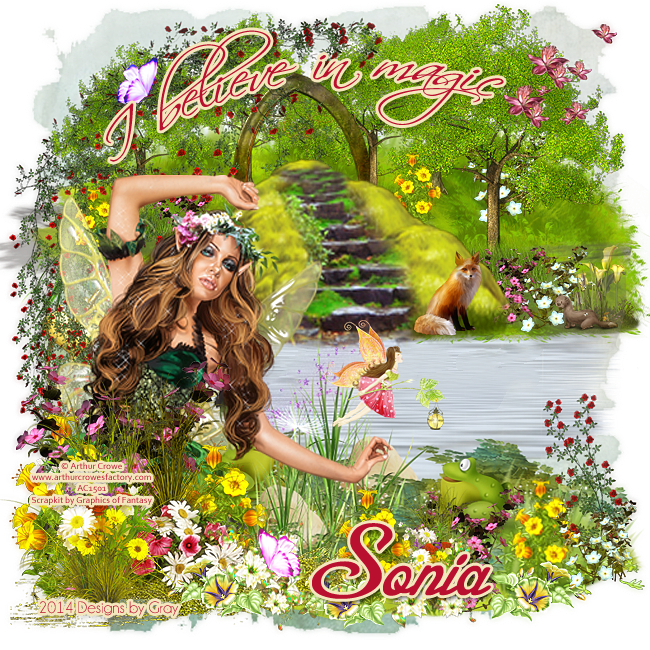
CT Tag and SNAGS PTU The Secret of Elf Wood kit by Graphics of Fantasy

New CT tags using the PTU kit The Secret of Elf Wood by Graphics of Fantasy kits.
I paired these with Arthur Crowe's Forest Fairy HERE
and Misticheskaya's Brianna HERE.
You must have a valid license in order to use these artworks.


*click image to view full size*


*click image to view full size*

Here's a preview of the kit:

You can buy this kit from PFD HERE,
Scraps From the Heart HERE,
and the Graphics of Fantasy store HERE.

And, as promised, here are some snags for you!
I hope you can find a use for these.
Please do not alter my work in ANY WAY.
Thank you!

*click image to view full size,
then right click to save as*


If you like my work, please leave me a comment,
and as always, thanks for stopping by!


CT Tag and SNAGS PTU The Easter House by Graphics of Fantasy

New CT tags using PTU The Easter House by Graphics of Fantasy kits
I paired these with one of the girls of Zlata_Ma's Beautiful Liras HERE
and Arthur Crowe's Flora Fairy HERE
You must have a valid license to use these artworks.


*click image to view full size*


*click image to view full size*

Here's a preview of the kit:

You can buy the kit from PFD HERE,
Scraps From the Heart HERE, 
and the Graphics of Fantasy store HERE

And here are some snags for you!
I hope you can find a use for these tags, but
please don't alter my work in ANY WAY.

*click to open in full size, then
right click to save as*


If you like my work, please leave me a comment,
and as always, thanks for stopping by!